4/14/2015

How to Sell Your Old iPhone iPad for A Better Price

There could be different reasons to sell your iPhone. You may want to upgrade the iPhone 4 to iPhone 5s; it is broken and you don't want to repair it; just received a new one for the birthday; or you want to switch to an Android phone like Samsung Galaxy S5. No matter for what reason you want to sell your used iPhone, you must want to get a good price and protect your privacy. In this case, you need to know:

Part 1. Things You Must Know before Selling iPhone iPad

1. Backup your data from your iPhone iPad

1) If you're going to use a new iPhone or iPad, the best way to backup your iPhone iPad is to use iTunes or iCloud. You can backup your iPhone iPad with one click via iTunes or iCloud. Then you can simply restore it to your new iPhone or iPad.


2) Want to use a phone based on other systems like Android? Then you're not supposed to backup your iPhone iPad with iTunes or iCloud, because you can't use the backup file in the future in any way, even read it. You'd better use a third-party tool, like iOS Data Manager to backup your media files, and contacts to computer, so that you can import them to your new iDevice. Or you can just transfer all data from the old iPhone to your new phone ahead of selling. My recommendation is the second one. It's much easier. Don't worry about not knowing any this kind of tools. You can use Mobile Transfer, which lets you transfer data among iPhone/iPad, Android phones and Symbian phones. It works like a charm.


You can free download a trial version here!


Download Mac Version
Mobile Tranfer Tool
Download Mac Version
iPhone iPad iPod Manager      

Related Tutorial: How to Backup Data from iPhone iPad to PC/iTunes

2. Erase all data on your iPhone iPad before selling

There must be pretty personal data like messages, contacts, pictures, bank accounts and more like this on your iPhone iPad, for you've used it for quite a long time. Therefore, don't directly sell your iPhone iPad without doing a deletion work. You must. This is as much important as backing up your data, or you'll lose your privacy. There are also two ways to erase all data on your used iPhone iPad.

1) Reset your iPhone iPad to factory settings: Many people choose this way to erase all data on their iDevices when they need to do this. It's simple: tap Settings > General > Reset > Erase All Content and Settings. Then your iPhone iPad will become a new one.

2) Since there are so many data recovery programs on the market to recover data from iPhone/iPad, you may be worried that others can recover the data from your device. It doesn't matter. You can try iOS Data Eraser or iOS Data Eraser for Mac to erase everything on your iPhone/iPad, making it a new one without any of your personal data.


You can free download a trial version here!


Download Win Version     Download Mac Version


Related Tutorials:
How to Permanent Erase Data from iPhone Before Selling

How to Permanent Wipe iPad Before Selling

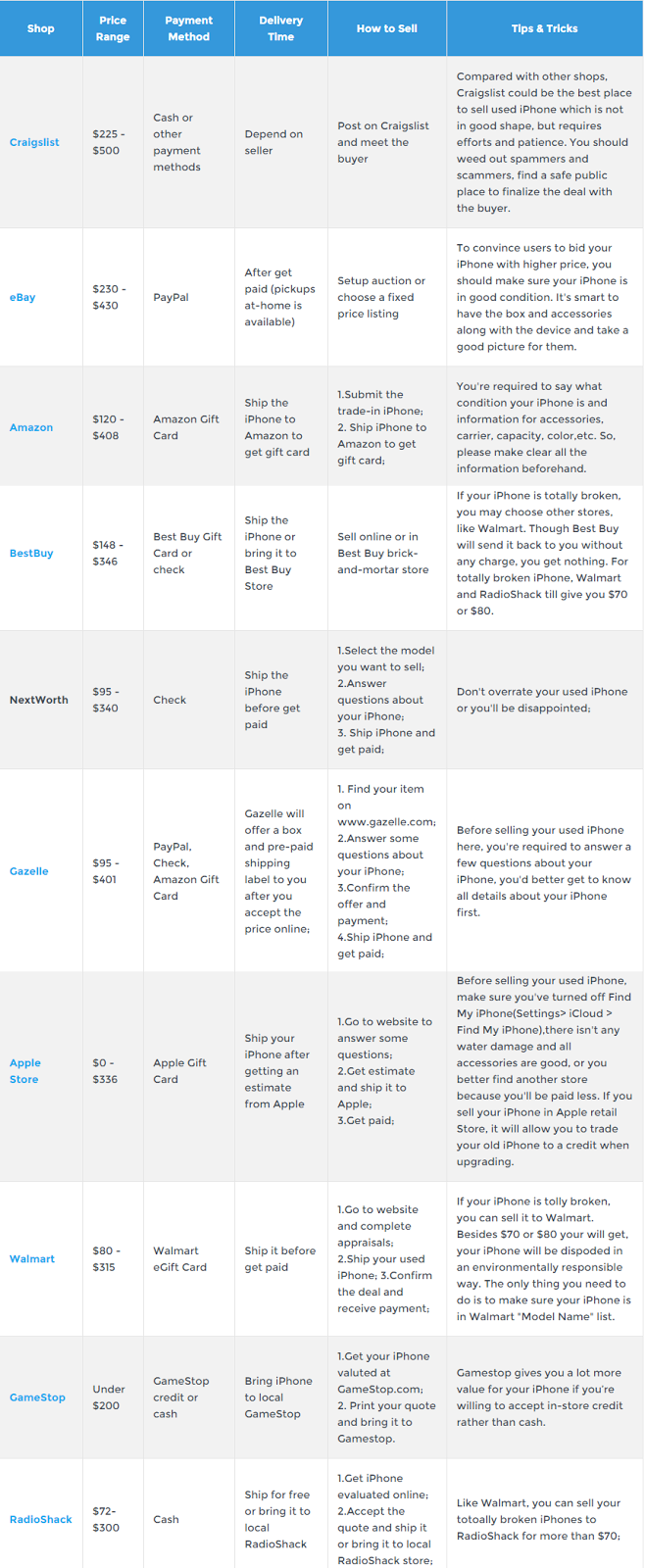
Part 2. Best Places to Sell iPhone iPad for the Most Money


4/10/2015

Apple Watch Voted $ 38 Million Ad-Rate In The Past Month

April 10, along with Apple Watch smart watches sale time approaching, the last month of this product Apple is increasing advertising investment. Since the "Spring Forward" events of March 9, Apple has spent $ 38 million related to the Apple Watch advertising, including in the United States put the television advertising and digital advertising.


As a comparison, in the past six months time, Apple iPhone 6 and iPhone 6 Plus advertising expenditures $ 42,000,000. Clearly, Apple is more actively promote the new Apple Watch. It is also easy to understand. Apple Watch after Tim Cook (Tim Cook) as CEO of Apple's first new product launch. In addition, not everyone was familiar with Apple Watch, but most people know at least iPhone.

This week, Apple NCAA basketball televised prime-time delivery of advertising. In addition, Apple also purchased the popular television programs, including the US drama "The Walking Dead" and the variety show "The Voice" advertising. Since the March events, Apple Apple Watch broadcast advertising has exceeded 300 times.

Apple Watch will be held April 10 to start booking and will start on the same day in-store display. This product will be April 24 officially on sale. Industry insiders estimate that, prior to this, the public will see more advertising Apple Watch.

Apple Watch Were All Snapped Up In 30 Minutes

In the United States, only 10 minutes later, the black Apple Watch Sport were booked out.

April 10, Apple Apple Watch Smart Watch today formally accept online reservations. Within 30 minutes of the time, most of the models were booked.


Today, Apple Watch in the United States, Britain, Australia, Canada, France, Germany, China, Hong Kong, China and Japan formally accepted the booking. In the United States, only 10 minutes later, a black Apple Watch Sport was booked, the delivery date was postponed to the middle of next month. A few minutes later, the ship date was pushed again by the end of May. According to Apple's plans, the first Apple Watch will be shipped April 24.

After 40 minutes, 18K Gold Edition Apple Watch the shipping date has been postponed to the end of July. An hour later, only a few of several unpopular models there are goods, such as dial size of 38 mm silver shell and green strap models, others are already booked completed.


In China, the highest price of 18K gold version of Apple Watch in less than an hour to be snapped up. The most expensive model sells for 126,800 yuan (US $ 20,000).

In Australia, Sydney's financial district (financial district) in front of Apple's flagship store has more than 20 fans in line, they want before buying can personally experience the Apple Watch.

Apple had said yesterday, in view of the consumer Apple Watch's "great interest", the official opening of sale of this product is likely to outstrip supply in April 24.

3/26/2015

How to Recover Data from iPhone 6S/6S Plus/7

iPhone, iPad, iPod are among the best selling mobile devices and Apple user numbers steadily increase in recent years. Apple offers numerous apps in Apple Store, its advanced technique and high standard user experience capture millions of Apple fans. However, problem comes as iTunes couldn’t meet all user requirements. Although apple has already developed into iPhone 6S, iPhone 6S Plus and ever iPhone 7, one of the most urgent issues is “how to restore lost data from iPhone iPad iPod” since Apple provides no solution for any files missing case.


As we all know, iTunes can automatically backup your iPhone data, but iTunes store the data in unreadable files and you can’t check them directly. Don’t worry, iPhone Data Recovery program can solve this problem, which enable you to find the backup file and preview the contacts, SMS, photos, videos, calendar, notes, call history and more in details. With the help of this program, you can easily restore your lost or deleted iPhone data in 3 ways: directly recover from iPhone, extracting to retrieve from iTunes or iCloud backup files.

Now, download the free trial version on your computer and try it yourself.

Download Win Version     Download Mac Version


Three Methods to Recover Data from iPhone 6S/6S Plus/7

Part 1: Directly Recover Data from iPhone 6S/6S Plus/7

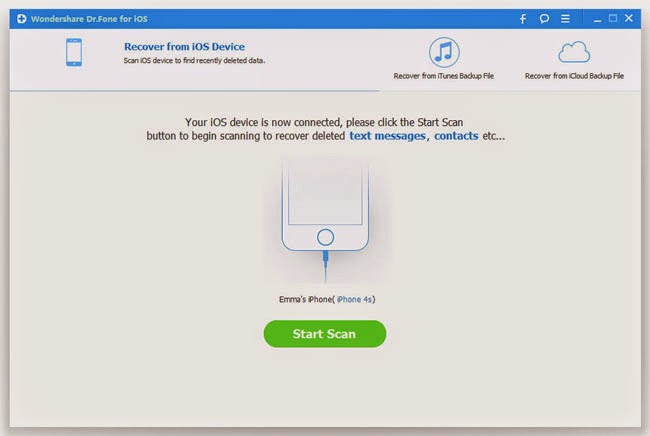
Step 1. Launch the Program and Connect your iPhone 6

After iPhone Data Recovery on your computer, connect your iPhone to the computer with the USB cable. You will see the interface as below. 

Step 2. Start to Scan Your Device

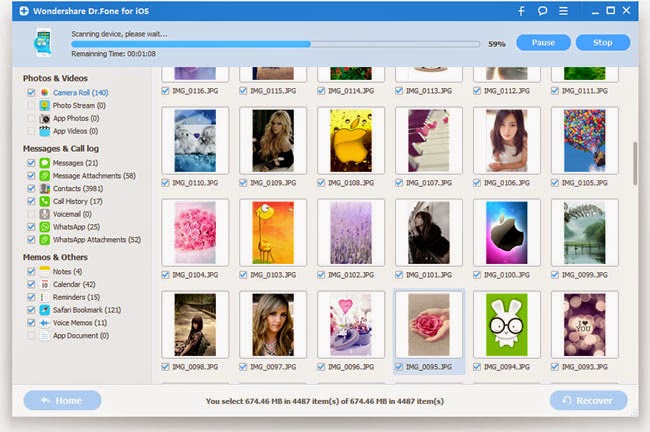
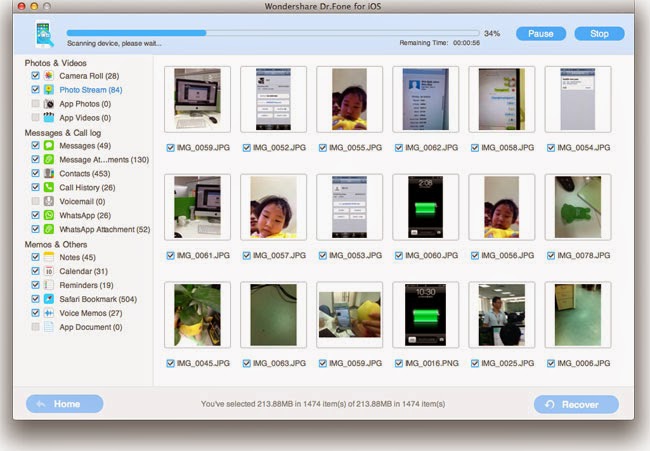
Click "Start Scan" in the interface of the program and it will scan your device for all the data stored in it, including contacts, text messages, photos and so on.

Step 3. Preview and Restore Selected Data from iPhone 6S/6S Plus/7

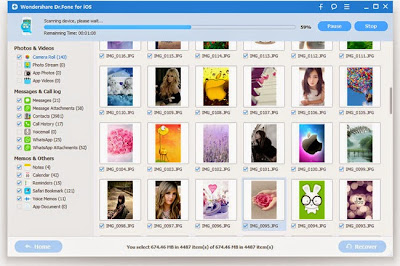
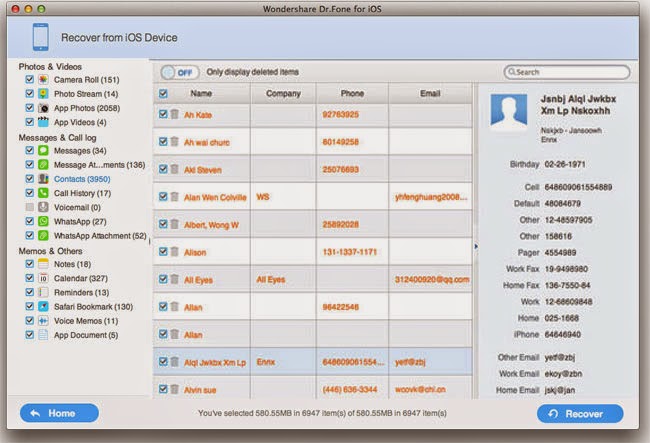
As the scanning finishes, all your iPhone data found will be listed in categories. You can preview them one after another and choose whose that you want to recover. After all the needed data was marked, you can click the "Recover" button to have them restored in your computer, or directly restore to your device.


Part 2: Restore iPhone Data from iTunes Backups

Step 1. Connect the Device and Scan the iTunes Backup

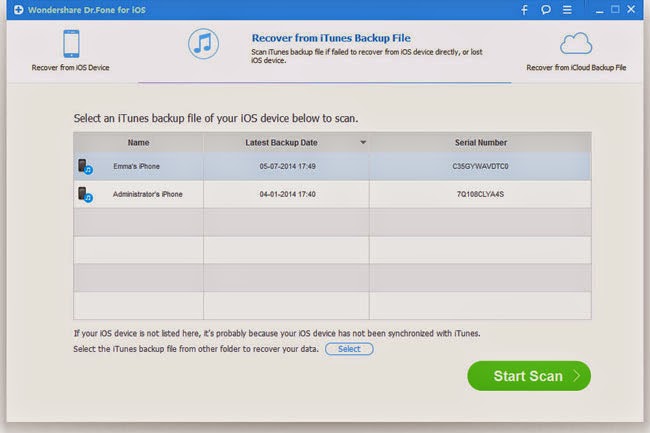
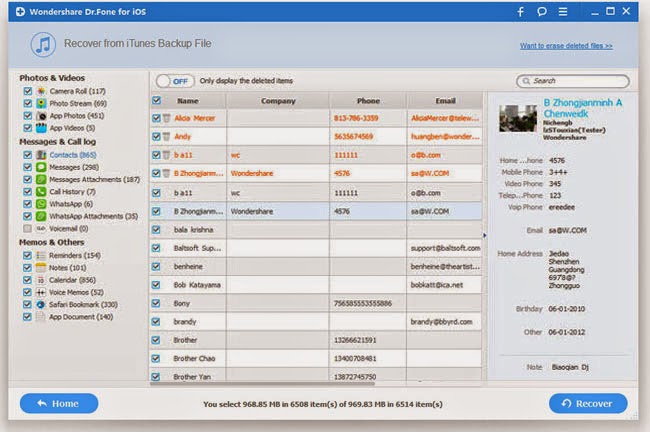
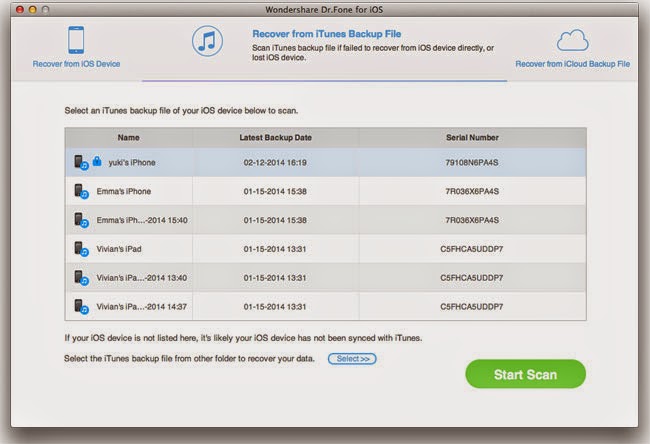
After installing, run the program on your PC, then switch to the mode of "Recover from iTunes Backup File", just as the below interface. You can see all your iTunes backup files are listed out by the app. Select the latest one of your iPhone and click "Start Scan".

Step 2. Recover the Data You Wanted Selectly

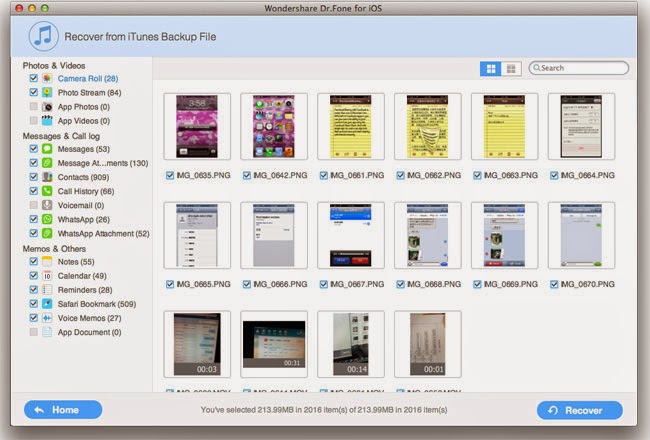
In this step, when the scan list out all the result, you can preview the files. Choose the data you want to recovery in the menu on left hand. Preview them and choose the items you need. Eventually click the "Recover" button for saving them back.


Part 3: Extracting to Retrieve iPhone from iCloud Backup Files

Step 1. Connect your iPhone with your computer and run the program

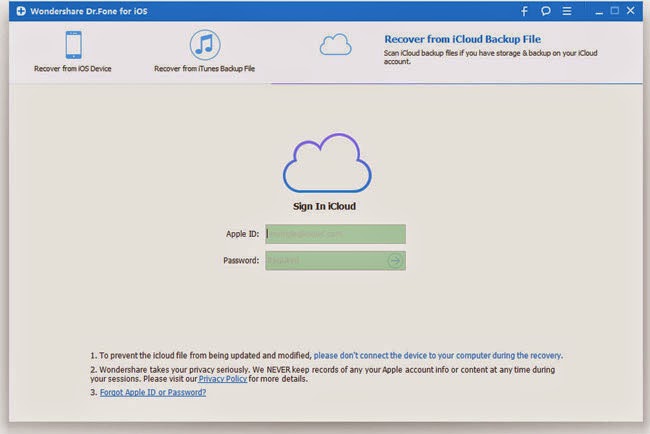
First, connect your iPhone with your computer by USB. Select "Recover from iCloud Backup File" and sign in your Apple ID and password as it requires.

Step 2. Download and extract your iCloud backup

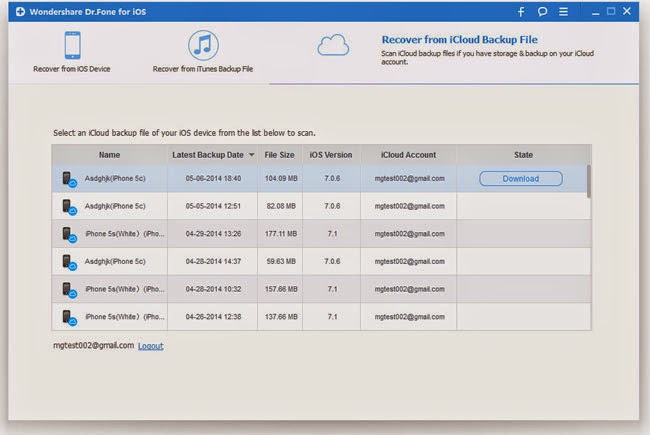
After entering the program, you can see the backup files of your iCloud now. Choose any data you want to retrieve by clicking "Download" button. The time it takes to download depends on the amount of data you’d like to get.

Step 3. Preview and restore lost iPhone data from iCloud

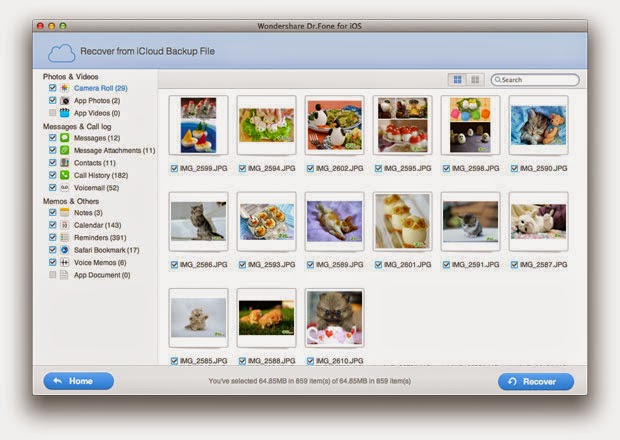
After that, click the same button to extract and you can see all the data are displayed in categories. You can take a preview of all the data after scanning them, photos, videos, messages, contacts, etc., just choose thed data that you want to retrieve by ticking it, then click "Recover" to get them all back with a click.


3/19/2015

Apple iPhone 6S Will Add Rose Color Design

There are earlier rumours that the iPhone 6S will adds rose color in the basis of original gray, white and gold. But how the effect of the pink iPhone 6S? Before the new color of the iPhone 6S exposure, the problem is still a mystery. But now, with the rose iPhone 6S real machine exposure, many netizens are very amazing, because the rose color can turn out to be so amazing.


It is reported that the iPhone 6 provide silver, gray, golden, iPhone 6S will be a new pink, mainly for female users. The appearance of the iPhone 6S will not have change, also can be divided into two versions 4.7 inch, 5.5 inch. In addition it is worth mentioning that the iPhone 6S will also join the Apple Watch the Force used by Touch Touch pressure technology, but will not equipped with the dual cameras, classic rose & white combination, the machine looks very fashion and contracted.


It is worth mentioning that the iPhone 6S and iPhone 6S Plus will carry Apple's new A9 processor, and will pre-install iOS 9 operating system.

In addition, the Apple company may carry force touch function in the upcoming release of iPhone 6S and iPhone 7. It is understood that the function which has been used in the iMac, iwatch, the future may also be used in magic mouse, as well as the upcoming iPhone series products.


Are you planning to buy a full new iPhone 6S, iPhone 6S Plus or iPhone 7? If so, you need to transfer data from old iPhone to new iPhone, so we think that you may interested in the tutorials as below:

How to Transfer Data from Old iPhone to New iPhone

How to Backup iPhone Data to Computer

How to Restore Lost Data from iPhone 6S/6S Plus/7

1/08/2015

How to Recover iPhone Data from iCloud Backup File

There are many ways to recover your lost iPhone data, you must wonder whether can get back your lost or deleted data from iCloud backup files that you created previous, such as retrieve photos, text messages, contacts, and more from iCloud Backups. Yes, it is a matter of course. But, the method I am trying to explicit here requires you to do a backup to iCloud first. Many people have being making use of iCloud service, which is extremely convenient for our modern lives. With it and this software iCloud Backup Extractor, getting back your iPhone lost data is just a piece of cake.


Supported Files:

Recover Camera Roll (Photo & Video), Recover Photo Library, Recover Photo Stream, Recover Messages, Recover iMessages, Recover Contacts, Recover Notes, Recover Call History, Recover WhatsApp History, Recover Reminders, Recover Voicemail, Recover Voice Memo, Recover Safari Bookmarks, Recover Calendars, Recover App Videos, Recover App Photos, Recover App Documents

If you want to get back your important data easily, please look for the details of this tutorial as below.


Download Win Version     Download Mac Version


Two Ways to Recover iPhone Data from iCloud Backup

Ways 1: Extracting to Recover iPhone from iCloud Backup

Step 1. Sign in Your iCloud Account

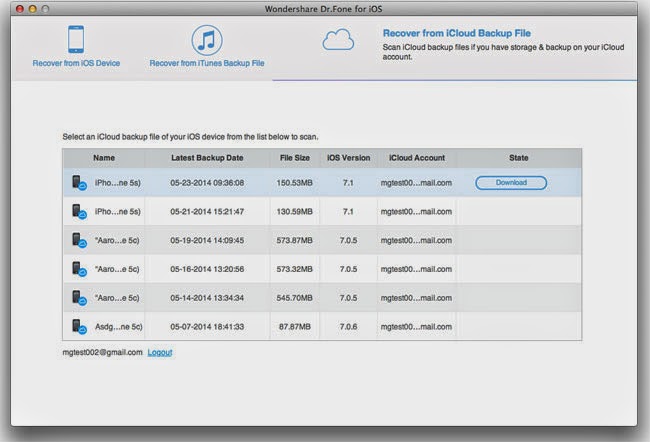
Launch iCloud Backup Extractor and you can see the window. Choose the third mode, "Recover from iCloud Backup File" on the top of the interface. And then there will be two boxes for you to fill in. Enter your Apple ID and password.


Step 2. Select and Analyze iCloud Backup File

When you have done the first step, a list of iCloud backup file you created with this account will be shown in the form. Choose the latest one and click "Download" in "State".


Step 3. Preview and recover whatever you want from the iCloud backup

The scan will be complete in a few minutes. Once it stops, you can preview almost all data in your iCloud backup file, like contacts, messages, photos, and more. Check them one by one and tick the item you want. Then click on the "Recover button" to save them on your computer with one click. Now contacts, messages and notes can be directly recovered to your iPhone if your iPhone is connected with your computer with a USB cable during the recovery process.


Ways 2: Restore iPhone Data by Using iCloud

1. Turn on your device. You should see a Hello screen.


2. Follow the steps in the iOS Setup Assistant until you get to the Set Up screen.


3. Select Restore from iCloud Backup.
4. Select a backup.

You can go through the iOS Setup Assistant again by erasing all the content on the device. Just tap Settings > General > Reset > Erase All Content and Settings. This will remove all content from your device, so do this only if you already have a backup. The iOS Setup Assistant is the only way to restore a backup.

The Difference Between Way 1 And Way 2:

If you have a new iOS device, or you need to to restore after a factory reset, you can use way 1 to get a completely recovery for your iPhone. However, if you data lost due to accidently deletion and other situations that you just want some of your data back, we strongly recommend you to recover your data by using way 2, so that you can selectively restore whatever you want, what's more, the recently new data will not being overwritten by the old data, causing more loss.

Related Hot Tutorials:

How to Extract iPhone Data from iTunes Backup File

How to Directly Restore Deleted Data from iPhone

How to Retrieve iPhone Data from iTunes Backup Files

Have you accidentally deleted something important on your iPhone or other iOS devices? Or, maybe you lost or broken your iPhone? All this situations not meaning you will lost your data forever if you have a iTunes backup. In fact, after your iTunes syncs with the iPhone, it keeps a separate backup files which contains all your data like photos, contacts, calendar, sms messages, recordings, videos, voicemails, notes, call history and more, however, all these files are not readable.Don’t despair. iTunes Backup Extractor finds all iPhone, iPod touch, and iPad backups automatically on your computer and lets you retrieve lost files with ease. You can view and recover iPhone backup files like contacts, text messages, photos, videos, call logs, notes, etc. directly with the help of this reliable yet easy-to-use recovery program.


Free Download a trial Windows or Mac version here according to your need, have try getting back your lost data by follow the below steps.


Download Win Version     Download Mac Version


Two Ways to Restore Lost iPhone Data from iTunes Backup

Way 1: Extract Lost iPhone Data from iTunes Backup File

Step 1. Launch iTunes Backup Extractor

Set the software up first. And double-click to get it opened. Choose the second mode by tapping on "Recover from iTunes Backup File". You may see the list of your backup history. If there is not any, the words "No relevant iTunes backup file found!" will be shown in the middle.


Step 2. Restore iPhone Photos, Contacts, SMS, and more from iTunes backup

It will take a few minutes to scan your iPhone. After that, you can preview all the extracted contents of your iTunes backup. Choose the lost data that you want it back, such as contacts, text messages, photos, etc., and click “Recover” button to get them back to your computer.


Way 2: Restore your iPhone using iTunes

Use these steps if you have a new iPhone or other iOS device, lost or broken your iPhone, or you need to to restore after a factory reset: 

1. Connect your device to the computer that has your backup.
2. Install the latest version of iTunes.
3. Choose File > Devices > Restore from Back up.


The Difference Between Way 1 And Way 2:

Both the way 1 and way 2 can restore the previous iTunes backup to your iPhone, so that you can save your lost data. However, if you have a new iPhone or other iOS device, or you need to to restore after a factory reset, you can use the way 2 to get a fully recovery for your iPhone. While, if you lost your iPhone data due to deletion, iPhone lost, iPhone broken, stolen, failed to upgrade/jailbreak and so on, you just want some of the data back, you've better to use the way 1, so that you can save your time, what's more, the recently data will not being overwritten by the old data, causing more losses.

Supported Devices: 

iPhone 6S, iPhone 6S Plus, iPhone 6, Plus/6, iPhone 5S, iPhone 5C, iPhone 5, iPhone 4S, iPhone 4, iPhone 3GS, iPad and iPod touch.


Related Tutorials:

How to Restore iPhone Data from iCloud Backup File

How to Directly Recover Lost Data from iPhone

11/04/2014

Nine Big Problem of the iPhone 6 & iPhone 6 Plus

Apple iPhone 6 and iPhone 6 Plus marketing had over a month and a half, but the excellent sales results failed to conceal all sorts of problems. Recently, we have collected the relative concentrated complained points of the new iPhone uers from some major forums, the following is the nine big problem of the iPhone 6 & iPhone 6 Plus.

1. Easy to bend

Apple iPhone 6 and iPhone 6 Plus features a full metal slim design, has an excellent sense of holding hands. But they have been reflected in many media iPhone 6 and iPhone 6 Plus in your pocket easily bent facts. There are even direct users to record video demos unarmed breaking bend iPhone 6. Although Apple said in a statement the first time iPhone 6 and iPhone 6 Plus titanium steel with a hard metal, but the brutal facts before us clearly did not make customer satisfaction.


Since then, the media said that the new iPhone 6 Plus on sale weight increase than the previous, so we speculate that Apple may add some parts to make it more robust in order to resolve the last bend easily breaking defects.

2. Plastic antenna is stained

According to BGR survey, stained has become a new problem faced by iPhone 6 users. According to some users reflect, because of the frequent take and put the phone in jeans pocket, the iPhone 6 will turn blue. Stained area focused on a light antenna, because the antenna portion is made of plastic bezel. In comparison, gold and silver version of iPhone 6, iPhone 6 Plus staining is particularly serious. In this regard, even though Apple recommends that users can use the tool to erase the stain cleaner, but it does not fundamentally solve the problem.


3. Clip hair and beard

Based in part on user feedback, the large gap between the Apple iPhone 6 cell phone case and screen, which makes the iPhone 6 is easy to clip to the hair or beard when calling.

4. The screen is fragile

The Apple iPhone 6 and iPhone 6 Plus have adopted the 2.5D curved glass, feel indeed improved, but fragile and more severe degree than in the past. Some netizens have exposed the brutality of the phone accidentally broke the screen after.

5. Touch malfunction
There are users reflect the iPhone 6 and iPhone 6 Plus there are some problems in the touch screen sensitivity.

6. Camera black

Part of the iPhone 6 or iPhone 6 Plus, there are some users after the camera is turned on, the screen will appear black state, and this issue when the rotation of the photo also has a chance to appear.

7. Bluetooth lost contact

Bluetooth connectivity problems are more common. It is reported that the problem can not connect a Bluetooth device iPhone 6 and iPhone 6 Plus arise, especially in the more common in-car Bluetooth.

8. Fingerprint error

Process complex Touch ID also not spared, there are users said that the sensitivity of fingerprint recognition problems occur from time to time. This is mainly because Apple released iOS consequences caused when careless 8.0.1.

9. Phone fire

It is reported that the United States a user PhillipLecther suffered a traffic accident, which led in his pocket iPhone 6 bent on fire, causing the thigh two burns.

Related Tutorials:

How to Backup iPhone 6 Data to Computer

How to Recover Deleted Files from iPhone 6 or iPhone 6 Plus

6/29/2014

How to Recover Deleted Data from iPhone 6/6S on Mac

One of the most commonly asked questions by iPhone users is: "Is possible to recover if things go horribly wrong while trying to hack their iPhone on Mac?" The answer is yes.

We found that lots of people deleted or lost their data like contacts, text messages, photos, videos, and more due to  careless deletion, formatting, system breaking down or other reasons. They are troubled in how to get their iPhone data  back in an easy and secure way. However, if you met the same problem, this tutorial will send three useful methods for you to recover iPhone lost data on Mac with the help of iPhone Contents Recovery For Mac, which is perfectly supports data  recovery from iPhone 6/5S/5C/5/4S/4/3GS, all iPads and iPod touch 4G/5G. 


Recover Deleted Data from iPhone 6 on Mac
If you want to get back your important data easily, please look for the details of this tutorial as below.

Download Win Version     Download Mac Version


Three Ways to Recover Deleted or Lost Data from iPhone 6 on Mac

Part 1: Recover iPhone Data from iPhone directly on Mac

Step 1. Run the program and connect your device to the computer


Step 2. Begin scanning your device


Step 3. Preview and retrieve lost data to your Mac


Part 2: Recover iPhone Data from iTunes Backup on Mac

Step 1. Extract your iTunes backup


Step 2. Preview and save data from iTunes backup to your Mac


Part 3: Recover iPhone Data from iCloud Backup on Mac

Step 1. Download and scan your iCloud backup


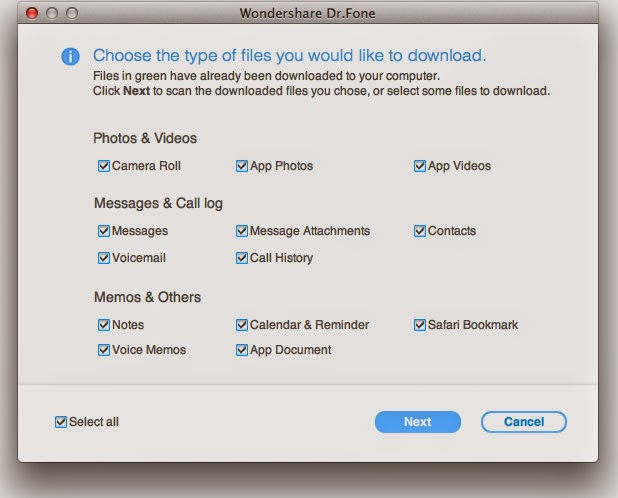
Step 2. Select files types to download


Step 3. Preview and recover the data you want


Related Tutorials:
How to Recover Lost Contacts on iPhone 6
How to Recover Deleted SMS from iPhone 6
How to Restore Deleted Photos from iPhone 6
How to Restore Lost Call History on iPhone 6
How to Recover iPhone 6 Data without Backups

iPhone Data Recovery - A Powerful & Effective Data Recovery Program Designed for iOS Users. Scan your Device and Extract iTunes Backup Files on Mac
•  8 types of deleted data are able to get back with one click to scan iPhone 6/5S/5C/5/4S/4/3GS, iPod touch 5, iPad 2, The New iPad, iPad with Retina display & iPad mini and more directly. 
•  Directly retrieve 15 kinds of lost data from iPhone 4, iPhone 3GS, iPod touch 4 and iPad 1.
•  Help you restore 14 types of lost data on all iOS devices by extracting iTunes backup files.
•  Regain data lost due to various courses, such as accidently deleting, device broken, system crash or update failure, etc.
•  Transfer your data from iDevice to PC for backup.

6/27/2014

How to Recover iPhone 6/6S Data Without Backups

Lost personal data on iPhone 6 with no backup in iTunes or iCloud? How to recover? Making backup of iPhone is an efficient way to prevent from iPhone data loss. Because if you accidentally lost or deleted important personal data from iPhone, you can easily get them back from iTunes backup. However, either due to ignorance or usual habit, you may forget to backup your iPhone. Then when you lost iPhone files, do you know how to restore the data from iPhone without iTunes backup? Is there any possibility to directly recover iPhone lost data without backup?
Recover iPhone 6 Data without Backups

The answer is surely yes! iPhone 6 Data Recovery or iPhone 6 Data Recovery Mac software specializes in scanning your iPhone and exporting data out of your iPhone. After that, you can save all the data including contacts, messages, photos, videos, call history and more on your computer or Mac. The program applys to iPhone 6/5S/5C/5/4S/4/3GS, as well as iPad and iPod. 

To do that, you can get this powerful iPhone Data Recovery and install the trial version for free on your Mac or Windows before recovery.

Download Win Version     Download Mac Version


Directly Scan and Restore Lost Data from iPhone 6 without Backup

Step 1. Connect your iPhone and Scan it

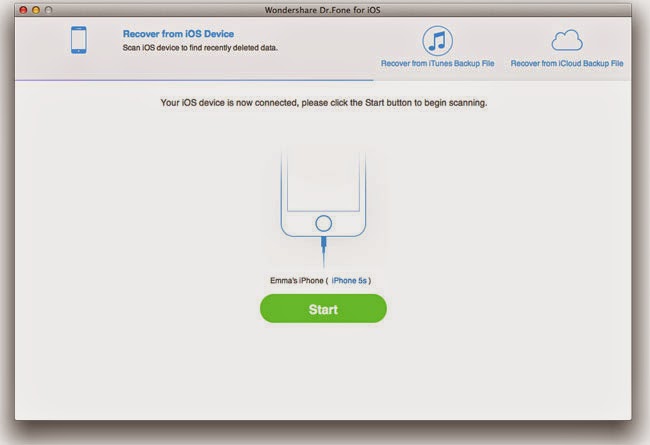
Download iPhone Data Recovery on your computer, install it, and launch it to continue recovering your iPhone data. You will be asked to connect your iPhone to the computer via USB cable. If you use iPhone 6/5S/5C/5/4S, you will see the main window as follows.
Click "Start Scan" button on the lower corner of the interface. Then, the program will automatically scan all your iPhone data. 


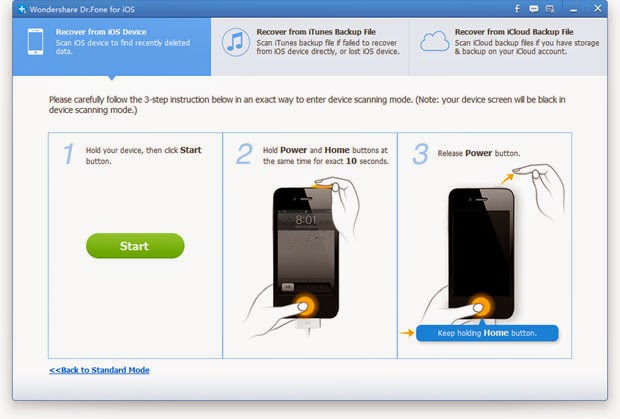
Note: If you use iPhone 4/3GS, you should enter the scanning mode first. 


Step 2. Preview and Recover iPhone Contacts

When the scanning progress finished, you can preview them one by one before recovering. Choose "Contacts" to preview, mark down the data that you want to get back to your iPhone, and then click "Recover" to extract all that you want.


Note: Make sure that your iPhone is well connected to the computer, otherwise, the recovering will fail and your iPhone data may get lost because of it. 

In addition, if you have backup your iPhone data with iTunes or iCloud, you can also extracting to restore your lost or deleted data from iPhone with iPhone Data Recovery.

Solutions 2. Recover iPhone Contacts from iTunes Backup
Solutions 3. Recover Deleted iPhone Contacts from iCloud Backup

Related Tutorials:
How to Recover Lost Contacts on iPhone 6
How to Recover Deleted SMS from iPhone 6
How to Restore Deleted Photos from iPhone 6
How to Restore Lost Call History on iPhone 6
How to Recover WhatsApp Messages from iPhone 6


iPhone Data Recovery - Professional iPhone Data Recovery Software for Personal Users

√ 3 methods to retrieve data from your iDevice, iTunes backup and iCloud backup.
√ Capable of recovering regular data like photos, messages, contacts, as well as App data like WhatsApp Chat History, Flicker, Kindle, Instagram, etc.
√ Suitable situations for iOS Data Recovery: Device Loss, Jailbreak, iOS Upgrade, Factory Settings Restore, Broken Device, System Crash, ROM Flashing.
√ Switch feasibly between partial recovery and whole recovery: you can choose to recover the whole contents or just some certain files at the final step.